Terraform
Learning DevOps Engineer passionate about cloud computing, containerization, and automation. Currently exploring Docker, AWS, and CI/CD pipelines to build scalable and efficient workflows. Documenting my learning journey in blog. stay tuned with me for learning.
Terraform is an infrastructure as code tool that lets you build, change, and version cloud and on-prem resources safely and efficiently.
Working :
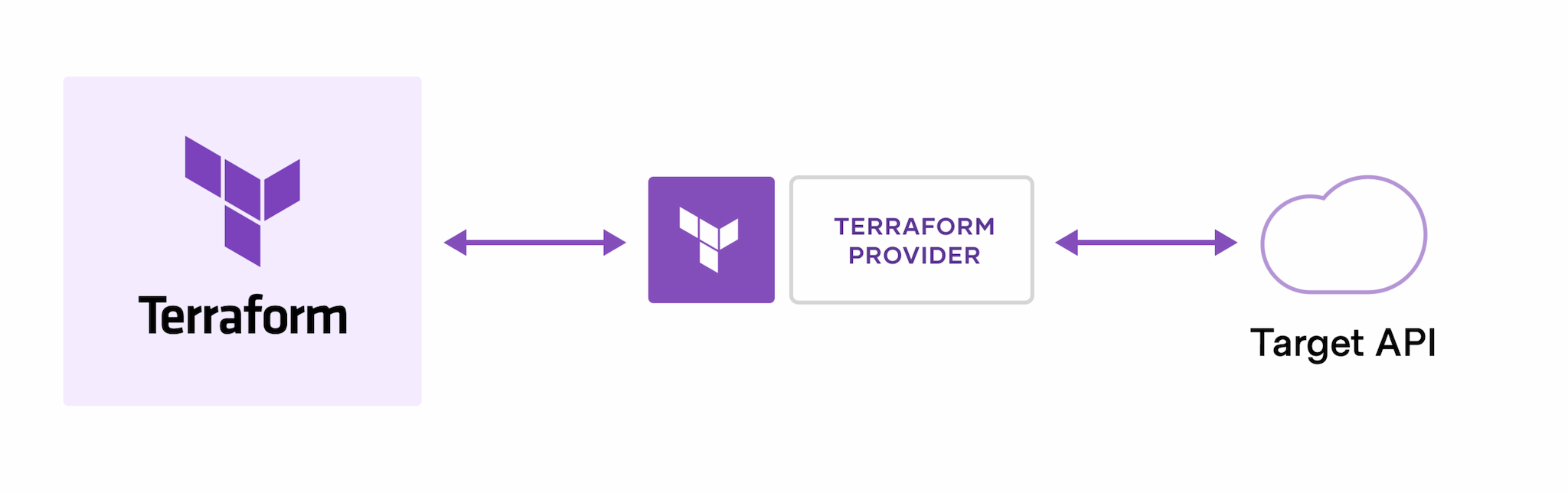
HashiCorp and the Terraform community have already written thousands of providers to manage many different types of resources and services.
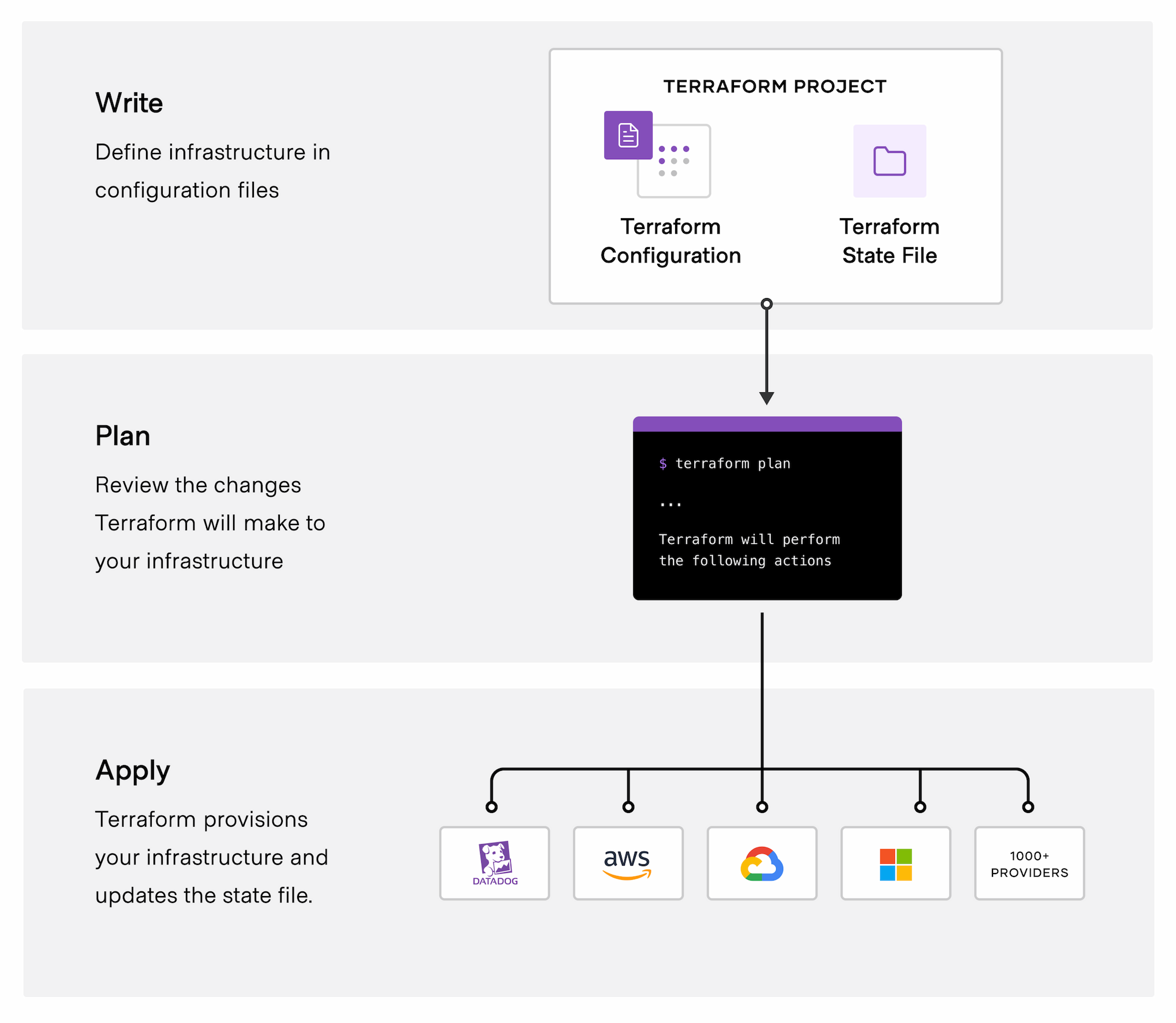
The core Terraform workflow consists of three stages:
Write: You define resources, which may be across multiple cloud providers and services. For example, you might create a configuration to deploy an application on virtual machines in a Virtual Private Cloud (VPC) network with security groups and a load balancer.
Plan: Terraform creates an execution plan describing the infrastructure it will create, update, or destroy based on the existing infrastructure and your configuration.
Apply: On approval, Terraform performs the proposed operations in the correct order, respecting any resource dependencies. For example, if you update the properties of a VPC and change the number of virtual machines in that VPC, Terraform will recreate the VPC before scaling the virtual machines.
Download Terraform for Windows
ON Web Browser https://developer.hashicorp.com/terraform/install
Under Windows, select :
Architecture: 64-bit
It will download a .zip file (example: terraform_1.9.8_windows_amd64.zip).
Extract the ZIP File
Right-click on the downloaded ZIP → Extract All
Move this terraform.exe to a permanent location
for example :
C:\Terraform
Add Terraform to System PATH
Press Windows + R, type
sysdm.cpl→ press EnterGo to Advanced → click Environment Variables
Under System Variables, find Path, select it → click Edit
Click New → add the path where
terraform.exeis locatedClick OK
Verify Installation
Open Command Prompt
terraform -version

# You see
Terraform v1.13.4
on windows_386
Why the .tf extension itself is needed in Terraform ?
The .tf extension tells Terraform that the file contains Terraform configuration code written in HCL (HashiCorp Configuration Language) .
Without the .tf extension, Terraform won’t recognize the file as part of the configuration it should read and execute .
Create main.tf
terraform {
  required_providers {
    aws = {
      source = "hashicorp/aws"
      version = "6.18.0"
    }
  }
}

provider "aws" {
  region = "ap-south-1"
  ami = "ami-00af95fa354fdb788"
  instance_type = "t2.micro"
  tags = {
    Name = "terraform machine"
  }
}
Initialize the directory (terraform init)
In the folder where main.tf lives, run :
terraform init

# you see
Initializing the backend...
Initializing provider plugins...
- Reusing previous version of hashicorp/aws from the dependency lock file
- Using previously-installed hashicorp/aws v6.18.0

Terraform has been successfully initialized!

You may now begin working with Terraform. Try running "terraform plan" to see
any changes that are required for your infrastructure. All Terraform commands
should now work.

If you ever set or change modules or backend configuration for Terraform,
rerun this command to reinitialize your working directory. If you forget, other
commands will detect it and r                                emind you to do so if necessary.
What terraform init does:
Downloads provider plugins (here,
hashicorp/random) into the local plugin cache.Sets up the backend (by default that's the local file
terraform.tfstate).Prepares the working directory for
plan/apply.
Using Terraform with Git Bash on Windows is a common setup.
Install and configure Git on Windows
Open the official Git website : https://git-scm.com/install/
Click Windows → download will start → Run the installer
Open Git Bash → Configure Git
    git config --global user.name "Your Name"
    git config --global user.email "your-email@example.com"
    git config --list
terraform -v # If you see a version output, installation is successful.
Create a Terraform Working Directory
mkdir /terraform/project1

cd  /terraform/project1
Create the main file :
main.tf
Initialize Terraform :
terraform init
Write a code in main.tf
vi main.tf

terraform {
  required_providers {
    aws = {
      source  = "hashicorp/aws"
      version = "~> 6.0"
    }
  }
}

provider "aws" {
  region     = "ap-south-1"
  access_key = "**************"
  secret_key = "**************"
}
resource "aws_instance" "e1" {
  ami           = "ami-01760eea5c574eb86"
  instance_type = "t2.micro"

  tags = {
    Name = "example-instance1"
  }
}
See What Terraform Will Create
terraform plan
Apply Changes
terraform apply
Destroy Resources
terraform destroy
VS Code is the best way to start working with Terraform because it gives you syntax highlighting, autocompletion, and error checking .
Install VS Code - https://code.visualstudio.com/docs/?dv=win64user
Install HashiCorp Terraform Extension in VS Code
Go to Extensions .
Search for “HashiCorp Terraform”
Click Install
This extension provides:
Syntax highlighting for
.tffilesIntelliSense (auto-completion)
Terraform CLI integration
Validation & formatting
Configure Terraform in VS Code
Create a new folder
File → Open Folder → terraform-project
Create a new file : Set environment variables
.env

setx AWS_ACCESS_KEY_ID AKIAIOSFODNN7EXAMPLE
setx AWS_SECRET_ACCESS_KEY wJalrXUtnFEMI/K7MDENG/bPxRfiCYEXAMPLEKEY
setx AWS_REGION us-west-2
open in integrated terminal
# Git bash

source .env
The command source .env is used in a Unix-like shell environment to execute the contents of a file, typically named .env, within the current shell session. This means that any variables defined in the .env file will be loaded as environment variables and become accessible to subsequent commands executed in that same shell.
Create a new folder
New folder → folder name
Inside folder Create a new file for code writing
New file → file name
Select file and write a code in text file
# Terraform settings and provider requirements
terraform {
  required_providers {
    aws = {
      source = "hashicorp/aws"
      version = "6.20.0"
    }
  }
}

# how and where to connect to AWS
provider "aws" {
  region = "ap-south-1"
}

# creates an AWS EC2 instance
 resource "aws_instance" "e1" {
  ami           = "ami-01760eea5c574eb86"
  instance_type = "t2.micro"

  tags = {
    Name = "example-instance1"
  }
}
After that
open in integrated terminal → Git bash
Path of .tf file
source .env

terraform init

terrafrom vaildate

terrafrom plan

terraform apply

terraform destroy
Terraform Registry :
The Terraform Registry is an official website by HashiCorp that provides a central catalog of providers, modules, and examples that you can use in your Terraform projects .