Complete Guide to Understanding Docker for Beginners
Learning DevOps Engineer passionate about cloud computing, containerization, and automation. Currently exploring Docker, AWS, and CI/CD pipelines to build scalable and efficient workflows. Documenting my learning journey in blog. stay tuned with me for learning.
What is Docker ?
Docker is an open platform for developing, shipping and running application.
Docker engine :
docker engine is an open source containerization technology for building and containerization technology for building and containerizing your applications. Docker Engine acts as a client-server application with.
A server with a long-running daemon process docker.
APIs which specify interfaces that programs can use to talk to and instruct the docker daemon.
A command line interface (CLI) client docker.
To see all images in your local machine
docker images
To find out images in docker Hub
docker search
To download image from docker hub
docker pull (image name)
To create new container
docker run -it --name (container name) (image name) /bin/bash
To check docker service start or not
service docker status
To start container
service docker start
To go inside container
docker attach (container name or id )
To see all container
docker ps -a
To see only running container
docker ps
To stop container
docker stop (container name or id )
To exit from container
exit
To understand changes made in running docker container
docker diff (container name or id )
To create new docker image
docker commit (container name or id ) (image name for save)
To build a docker image from Docker file
docker build -t (image name for save ) .
Docker File :
Is basically a text file it contains set of instruction Automation of docker image creation.
Why Dockerfile Readability Matters :
Reduces confusion for teammates and future you
Eases debugging when something breaks in the build
Helps with code reviews by making intentions obvious
Improves maintainability of long-term projects
Docker Components :
FROM - For base image this command must be on top of the Docker file.
RUN - To execute command it will create a layer image.
MAINTAINER - Author/Owner/Description.
COPY - Copy file from local machine (Docker VM) we need to provide source, destination.
ADD - Similar to copy but it provides a feature to download file from internet, also we extract file at Docker image side.
EXPOSE - To expose port such as port 8080 for tomcat, port 80 for nginx etc.
WORKDIR - To set working directory for container creation.
CMD - Execute the commands but during container creation.
ENTRYPOINT - Similar to CMD but has higher priority over CMD.
EVN - Environment variable.
VOLUME - Used to display information about volumes on a disk or modify volume.
Example of Dockerfile
# Base image
FROM python:3.11-slim

# Set working directory
WORKDIR /app

# Install system dependencies
RUN apt-get update && apt-get install -y \
    curl \
    git \
    build-essential \
    && rm -rf /var/lib/apt/lists/*
Docker Volumes :
Docker volumes are used for persistent storage, allowing data to be shared between containers or retained even after a container stops. they are managed outside of the container’s filesystem and are recommended way to handle persistent storage in docker.
Subcommands
Create a volume :
# docker volume create (volume name)
Display Detailed information on one or more volume :
# docker volume inspect (volume name)
List volumes :
# docker volume list
Remove unused local volumes :
# docker volume prune
Remove one or more volumes :
# docker volume rm (volume name)
Update a volume :
docker volume update
Types of volumes :
Container-to-Container :
If you want multiple containers to share data, you can use Docker volumes. When multiple containers mount the same volume, they can read and write to the same data store.
Persistent storage : Data remains even if a container is removed.
Multi-container application : Sharing logs, configuration files or data between service.
Decoupling storage from the container : Containers can be replaced without losing data.
Use Cases:
Testing your app in a browser (
http://localhost:3000)Accessing container logs or services
Debugging with tools from your host
# docker run -it --name (new container name) --privileged=true --volumes-from (volume container name) (image name) /bin/bash
Host-to-Container :
Docker volumes allow you to share data between your host machine and a container, making it easy to persist and manage data outside the container.
Host is our local machine : /home/ec2-user
Use Cases:
Web app connecting to a database (e.g., Node.js → MongoDB)
Microservices architecture
Internal service communication
# docker run -it --name (new container name) -v /home/ec2-user:/(volume name) --privileged=true (image name) /bin/bash
Docker Attah and Exec command :
Both docker attach and docker exec allow you to interact with a running container, but they serve different purpose.
Docker attach :
Connects your terminal to the main process of a running container.
Shows the same output as the container main process.
# docker attach (container id or name)Docker exec :
Runs a new command inside a running container without affecting the main process.
You can start interactive shell inside a running container.
Even if you exit session, the container keeps running.
# docker exec -it (container name) /bin/bash
Best for debugging or running additional commands inside an already running container.
Does not show the default process log unless you explicitly run a command to view them.
| Feature | Docker attach | Docker exec |
| Connects as | The containers main process | A new process inside the container |
| logs output | Show real-time logs from the main process | No logs unless you run a log command |
| Interactive shell | Only if the container was started with an interactive shell | Can start a new interactive shell anytime |
| Exiting effect | May stop the container | Container keeps running |
The -it and -td options in docker are used when running containers, but they serve different purpose.
| Option | Description | Use case |
| -it | Runs interactively with a terminal | Debugging, manual interaction |
| -td | Runs in the background (Detached) | Running services or daemons |
-it :
i - (interactive mode)
t - (terminal)
- Not ideal for background process because the container will exit if the shell session ends.
-td :
t - (interactive mode)
d - (detached)
Running background services (Ex. : Web servers, database)
Running long-lived applications without keeping the terminal open.
Not ideal for interactive sessions, since you won’t see logs or interact with the process directly.
-p :
The -p or (-- publish) flag in docker is used to map a container port to a port on the host machine. this allow external access to service running inside the container.
Docker port expose :
Creates a bridge between the isolated environment of the container and the outside world.
Links a specific port on the container to a port on the host machine.
Enables external access to the services running inside the container.
# docker run -td --name (container name) -p 80:80 (image name)
(80:80) - port number
Show port mapping :
# docker port (container id or name)
docker port expose lab :
# docker ps -a
CONTAINER ID   IMAGE     COMMAND       CREATED        STATUS                    PORTS     NAMES
66082d1f16d4   ubuntu    "/bin/bash"   35 hours ago   Exited (1) 23 hours ago             myfirstdockercon
# docker run -td --name mycontanier -p 80:80 ubuntu
4c6fd3d0d9c5c8d959641df3944ed535591feca53d6154ac72da91b58d61f57a
# docker ps
CONTAINER ID   IMAGE     COMMAND       CREATED          STATUS          PORTS                               NAMES
4c6fd3d0d9c5   ubuntu    "/bin/bash"   48 seconds ago   Up 47 seconds   0.0.0.0:80->80/tcp, :::80->80/tcp   mycontanier
# docker port mycontanier
80/tcp -> 0.0.0.0:80
80/tcp -> [::]:80
# docker exec -it mycontanier /bin/bash
# apt-get update
Get:1 http://security.ubuntu.com/ubuntu noble-security InRelease [126 kB]
Get:2 http://archive.ubuntu.com/ubuntu noble InRelease [256 kB]
Get:3 http://security.ubuntu.com/ubuntu noble-security/universe amd64 Packages [1077 kB]
Get:4 http://archive.ubuntu.com/ubuntu noble-updates InRelease [126 kB]
Get:5 http://archive.ubuntu.com/ubuntu noble-backports InRelease [126 kB]
Get:6 http://archive.ubuntu.com/ubuntu noble/multiverse amd64 Packages [331 kB]
Get:7 http://archive.ubuntu.com/ubuntu noble/universe amd64 Packages [19.3 MB]
Get:8 http://security.ubuntu.com/ubuntu noble-security/multiverse amd64 Packages [21.9 kB]
Get:9 http://security.ubuntu.com/ubuntu noble-security/main amd64 Packages [986 kB]
Get:10 http://security.ubuntu.com/ubuntu noble-security/restricted amd64 Packages [1178 kB]
Get:11 http://archive.ubuntu.com/ubuntu noble/main amd64 Packages [1808 kB]
Get:12 http://archive.ubuntu.com/ubuntu noble/restricted amd64 Packages [117 kB]
Get:13 http://archive.ubuntu.com/ubuntu noble-updates/multiverse amd64 Packages [26.7 kB]
Get:14 http://archive.ubuntu.com/ubuntu noble-updates/universe amd64 Packages [1375 kB]
Get:15 http://archive.ubuntu.com/ubuntu noble-updates/restricted amd64 Packages [1259 kB]
Get:16 http://archive.ubuntu.com/ubuntu noble-updates/main amd64 Packages [1305 kB]
Get:17 http://archive.ubuntu.com/ubuntu noble-backports/universe amd64 Packages [31.8 kB]
Get:18 http://archive.ubuntu.com/ubuntu noble-backports/main amd64 Packages [48.0 kB]
Fetched 29.5 MB in 5s (5962 kB/s)
Reading package lists... Done
# apt-get install apache2 -y
:/# service apache2 start
 * Starting Apache httpd web server apache2                                                                                                                 AH00558: apache2: Could not reliably determine the server's fully qualified domain name, using 172.17.0.2. Set the 'ServerName' directive globally to suppress this message
 *
# service apache2 status
 * apache2 is running
# cd /var/www/html
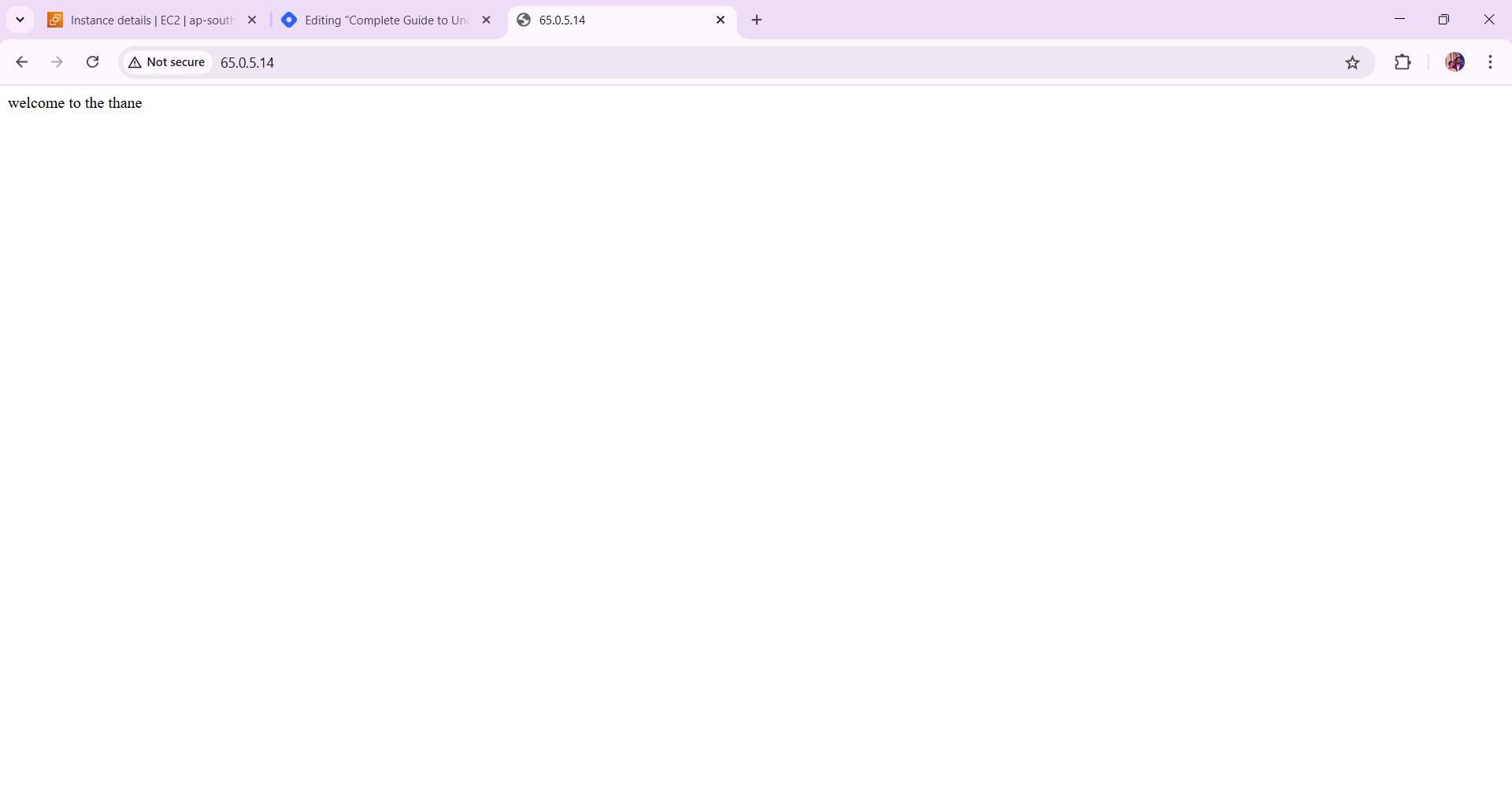
# echo "welcome to the thane" > index.html
/var/www/html# ls
index.html
Your EC2 machine IP copy and browser it.
Conclusion :
Docker is a powerful tool that simplifies the process of developing, shipping, and running applications by utilizing containerization technology. It offers a range of features and components, such as Docker Engine, Dockerfile, and Docker Volumes, which facilitate efficient application management and deployment. Understanding the various commands and options, like -it, -td, and -p, allows users to effectively interact with containers and manage their applications. By leveraging Docker's capabilities, developers can ensure consistent environments, streamline workflows, and enhance collaboration across teams, making it an essential tool in modern software development.